EdgeAura
Zachary HoltPersonalization
3.9903.00 Reviews
- Version
- 1.26.30
- Installs
- 1.00M
- Age Rating
- Everyone
Screenshots
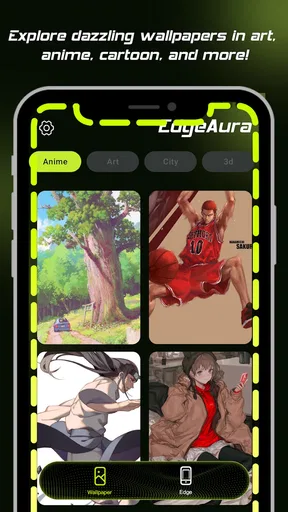
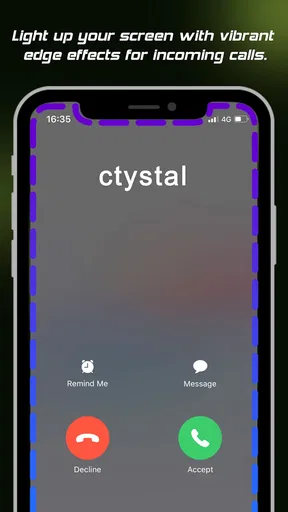
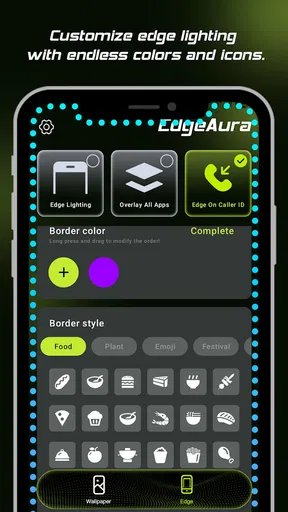
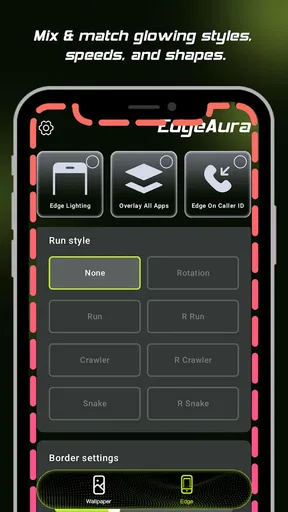
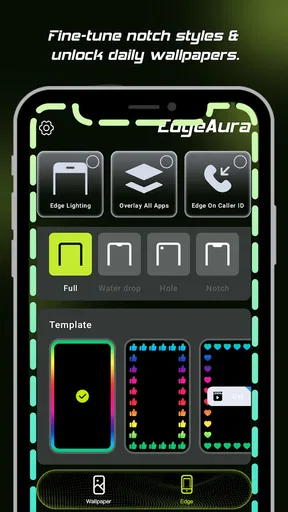
Our Review of EdgeAura
 Analysis by Appyee
I see the appeal of EdgeAura most clearly when a phone is shared at home. One person may want quick access to a handful of tools, while another cares more about a polished screen or a caller display that feels personal. The app brings those kinds of visual and shortcut customizations together, but I’d treat it as a way to tailor one device’s look and access—not as a household-management tool. Before setting it up on a phone everyone uses, it’s worth agreeing on what should be changed and what should stay familiar.
One phone, several people, different habits
On a shared device, even small changes can affect everyone. A glowing edge effect may be welcome to the person who chose it, but distracting to someone else, especially when they use the phone in a dim room. Wallpapers and caller-screen styling are similarly visible choices: they can make the phone feel more personal, but they may not suit every user. I’d start with a restrained look and ask the other regular users to try it before building a more elaborate setup.
The practical benefit is less about creating separate experiences for each person and more about making a common phone easier to recognize and use. If someone often needs the same shortcuts, a carefully chosen edge treatment or home-screen appearance can help the device feel less cluttered. But I would not rely on visual personalization to keep one person’s apps, contacts, or settings separate from another’s. Those boundaries need to come from the phone’s own user or account options, where available.
Set boundaries before changing the look
I’d make the first setup session a quick, reversible experiment rather than a full makeover. Choose one visual change, use the phone normally for a day, and then decide whether it helps or merely adds noise. That approach is particularly useful on a family device: it gives everyone a chance to notice whether an effect is distracting, whether a shortcut is easy to trigger accidentally, or whether the new appearance makes the phone harder to navigate.
Keep the existing way of finding essential apps in mind as you customize. A shared phone should remain understandable to the least confident user, not just the person who enjoys tweaking it. If someone depends on a familiar wallpaper or an uncluttered screen to recognize the device, preserve that cue. I’d also avoid making an edge shortcut the only route to anything important; personalization should make common tasks more convenient, not turn them into a puzzle when another person picks up the phone.
Coordinate changes without assuming shared controls
One useful household habit is to decide who gets to make appearance changes and to let everyone know when a noticeable one has been made. That simple agreement prevents a surprise wallpaper or caller-screen style from being mistaken for a problem. It also helps when a person borrows the phone briefly and later needs to return it to its usual state.
I would not assume that a single setup can automatically adapt to different family members or that the app provides separate household profiles. Think of it as customization applied to the device, then check the phone’s own settings if you need separate accounts or user spaces. That distinction matters: an attractive edge effect can personalize the shared screen, but it does not establish privacy between people who use the same device.
Age, comfort, and trust
The app is rated for Everyone, which makes its general audience broad, but that does not mean every visual effect will suit every person. For a child, an older relative, or anyone sensitive to bright or animated-looking screen treatments, I’d begin with the least distracting option and check how it feels in everyday use. If the phone is used at night, try the appearance in a dim environment before settling on it.
Trust also comes down to being clear about what has changed. When one person customizes a shared phone, the others should know that the appearance is intentional and how to return to the familiar setup if they dislike it. I wouldn’t present personalization as a privacy or safety feature. It can make a device feel more welcoming, but sensible account boundaries and supervision still depend on the device and the household’s own practices.
Who is likely to enjoy it?
I think this is best for someone who likes tuning a phone’s appearance and wants visual flair alongside convenient access. It may also suit a household where one person manages a shared phone and the others are happy with a consistent, agreed-upon setup. Someone who rarely changes their wallpaper, prefers a plain interface, or dislikes glowing effects may get little value from it.
If you’re choosing it mainly for a child’s device, or because you need separate access for family members, I’d look first at the phone’s built-in account and parental options. Those solve a different problem. If you simply want a phone that looks more distinctive and has a customized edge presentation, this app is a more relevant choice than a basic wallpaper changer alone.
So, I recently stumbled upon this little gem, and let me tell you, it’s been quite the ride. If you’re someone who’s always on the lookout for new apps to spice up your smartphone experience, you’re going to want to hear about this one.
What the edge customization adds
Picture this: you’re at a café and you see someone casually swiping the edges of their phone, and it’s doing things you never thought possible. That’s EdgeAura for you. This app is all about transforming the way you interact with your device by giving you an edge panel that you can customize to your heart’s content. It’s like having a mini control center right at the tip of your fingers.
Getting Started with EdgeAura
Installing the app is a breeze. Head over to the app store, hit that download button, and you’re good to go. Once you’ve got it installed, the real magic begins. The setup is super intuitive, and even if you’re not the most tech-savvy person out there, you’ll have no trouble figuring it out.
After granting it the permissions it needs (don’t worry, it’s safe), you’re presented with a sleek and minimalistic interface. You can start by selecting which apps you want to access quickly or even add widgets for things like weather updates or quick notes. It’s all about making your phone work for you, not the other way around.
The Features That Stand Out
One of the coolest features is the ability to customize the edge panels. You can add shortcuts to your most-used apps, contacts, or even tools like a flashlight or calculator. It’s like having your favorite things at your beck and call. Plus, you can adjust the size and transparency of the panels to suit your taste.
And let’s talk about themes. You can switch between different themes to match your mood or the time of day. Whether you prefer a dark, mysterious vibe or a bright, cheerful look, there are options to make the screen feel more like yours.
Making it useful beyond appearance
For me, the strongest use case is a short list of actions I reach for repeatedly, not a crowded panel full of every possible shortcut. On a busy day, I might want a familiar tool close at hand while I’m reading or messaging, without backing out to search through the app drawer. The trade-off is that an edge panel is only helpful if I can open it deliberately. Since accidental activation can happen, I’d adjust its placement and size gradually, then test it while holding the phone in the way I normally do.
There’s also a practical reason to keep the panel selective: a phone’s usual home screen remains the dependable fallback. I’d put only genuinely frequent destinations in the edge area and leave occasional tasks where they already live. That makes the feature easier for someone else in the household to understand, too. A small, predictable set of shortcuts is more useful than an elaborate arrangement that only its creator remembers.
Customization here sits between a plain wallpaper tool and a more comprehensive launcher. A wallpaper app is the simpler choice if all you want is a new background. A launcher is usually the better direction if your goal is to reorganize the whole home screen and app navigation. This app makes more sense when you specifically want edge styling and quick access as part of the phone’s presentation, rather than a complete replacement for its existing interface.
Everyday use and small adjustments
Imagine checking a recipe while cooking, then needing a calculator without losing your place. A thoughtfully arranged edge panel could make that switch feel quicker than returning to the home screen and searching. In a shared kitchen, though, I’d avoid putting the panel where a person’s grip naturally brushes it, and I’d show other users how to open it intentionally. That tiny bit of coordination can prevent a useful shortcut from becoming an irritating interruption.
For a caller screen or a more expressive visual treatment, I’d make changes when I have a moment to test them, rather than during a rushed handoff or right before someone needs the phone. The look that feels fun in daylight may be too bright in the evening, and a style one person enjoys may not be comfortable for another. A gradual setup makes it easier to identify which change is responsible if the phone starts feeling busier than before.
Why You’ll Love It
If you’re like me and love anything that boosts productivity, this app can be a handy addition. It cuts down the time you spend scrolling through endless apps or menus, letting you get straight to what you need. Imagine being able to reach a shortcut while you’re in another app. The convenience depends on choosing useful shortcuts and setting the panel so it doesn’t get in the way.
Another aspect that really impressed me is the community support. The developers are quite active and actually listen to feedback, so you know the app is only going to get better with time. Plus, the community forums are a great place to pick up tips and tricks from other users.
What to weigh before installing
EdgeAura is a free personalization app from Zachary Holt. It has a 3.5 average from around 1.7 thousand ratings, with over a million installs, so it has clearly reached a sizable audience, though that alone doesn’t tell me whether its style will suit you. It was released on October 24, 2025, and version 1.26.22 requires Android 8.0 or later. The age rating is Everyone.
The app includes in-app purchases ranging from $1.99 to $24.99 per item. I’d begin with the free experience and decide whether the core look and shortcuts are useful before paying for anything. That’s especially sensible if you’re customizing a shared phone: first make sure the people who use it actually like the changes. If you want a completely free, no-purchase approach to personalization, a built-in wallpaper setting or a basic wallpaper app may be a better fit.
There are also good reasons to skip it. If you prefer a clean, unchanged screen, don’t use edge shortcuts, or find extra visual effects distracting, the added customization may feel like upkeep rather than a benefit. And if your main concern is keeping family members’ content separate, choosing this app won’t replace the account tools built into a device. Its strengths are in appearance and access, not household administration.
Room for Improvement
Now, it wouldn’t be a fair review without mentioning a couple of quirks. While the app is fantastic, there are times when the panel can be a little too sensitive, activating when you didn’t mean for it to. It’s not a dealbreaker by any means, but something to be aware of.
Also, while the free version of the app is quite generous, there are some premium features locked behind a paywall. If you’re someone who likes having the full package, you might find yourself tempted to spend a few dollars.
A household-minded verdict
For a personal phone, I’d recommend trying the app if you want a distinctive edge treatment and a few deliberately chosen shortcuts. For a shared phone, I’d use it only after agreeing on the appearance and keeping the edge panel simple enough for everyone to understand. The best result is not the most customized one; it’s the setup that feels helpful without surprising the next person who picks up the device.
It isn’t the right choice for families seeking separate profiles, stronger account boundaries, or a child-focused control system. In those situations, the phone’s built-in user and supervision features are more appropriate. But if the goal is a more personal screen and quicker access to a small set of commonly used items, this is a practical option to explore—provided you’re comfortable adjusting it until the touch area feels natural.
Final Thoughts
All in all, this is a solid addition to a smartphone for people who enjoy tailoring how it looks and how they reach a few everyday tools. It’s not just about adding functionality; it’s about shaping the experience around your habits. If you’re looking for an app that’s both fun and practical, it’s worth checking out, as long as the edge effects and occasional sensitivity suit the way you use your phone.
So, give it a try and see whether the customized edge panel earns a place in your routine. I’d keep the first setup modest, especially on a shared device, and expand it only when the changes genuinely help. That way, the phone stays familiar to everyone while still feeling a little more personal.
Verdict
Strengths of EdgeAura
- User-friendly interface with intuitive navigation.
- High-quality graphics enhance user experience.
- Wide range of customization options available.
- Regular updates with new features and improvements.
- Efficient customer support for resolving issues.
Limitations of EdgeAura
- Occasional glitches during gameplay sessions.
- In-app purchases can be quite expensive.
- Requires a stable internet connection to function.
- Consumes significant battery power on long use.
- Limited offline functionality restricts access.
Similar Picks in This Category
View All
Microsoft SwiftKey AI Keyboard
SwiftKey4.3

Wallpapers
Google LLC4.1

Zedge™ Wallpapers & Ringtones
Zedge4.7

Yandex Browser with Alice AI
Direct Cursus Computer Systems Trading LLC4.3

Ringtone Maker:create ringtone
Big Bang Inc.4.7

Fonts Keyboard
Fonts Keyboard3.9
Frequently Asked Questions
What features does EdgeAura offer?
EdgeAura is a robust app designed to enhance your device's interface with customizable edge lighting effects. It offers features like personalized notification colors, adjustable brightness, and assorted animation styles. Users can also set unique edge lighting for specific apps, making notifications more visually engaging and easier to identify.
Is EdgeAura compatible with all devices?
EdgeAura is compatible with most Android devices that support edge lighting functionality. However, some older models or devices with custom operating systems may experience limited compatibility. It's recommended to check the app's requirements on the Google Play Store to ensure your device can fully support its features.
Does EdgeAura significantly drain the battery?
EdgeAura is designed to be energy-efficient, minimizing battery consumption while providing dynamic edge lighting effects. However, extensive use or high brightness settings can lead to increased battery usage. Users can optimize settings within the app to balance performance and battery life according to their preferences.
How easy is it to customize settings in EdgeAura?
EdgeAura offers a user-friendly interface that allows easy customization of edge lighting effects. Users can quickly adjust colors, animation styles, and brightness levels through simple controls. The app also provides preset themes for those who prefer a quick setup, ensuring a seamless user experience.
Is there a cost to use EdgeAura?
EdgeAura offers a free version with basic features, while additional premium options are available through in-app purchases. The premium version unlocks more advanced customization options and removes ads, providing a more enriched and uninterrupted user experience. Users can choose based on their needs and budget.
